How to import scene collections into OBS studio 2025
Your stream deserves more than a makeshift setup. OBS Studio 2025 gives you scene collections, a powerful feature that lets you save your full streaming layout — scenes, sources, transitions, and all — into one neat file. Whether you’re a first-timer or swapping out yesterday’s layout for something sharper, importing scene collections is the fastest way to get up and running with a professional look.
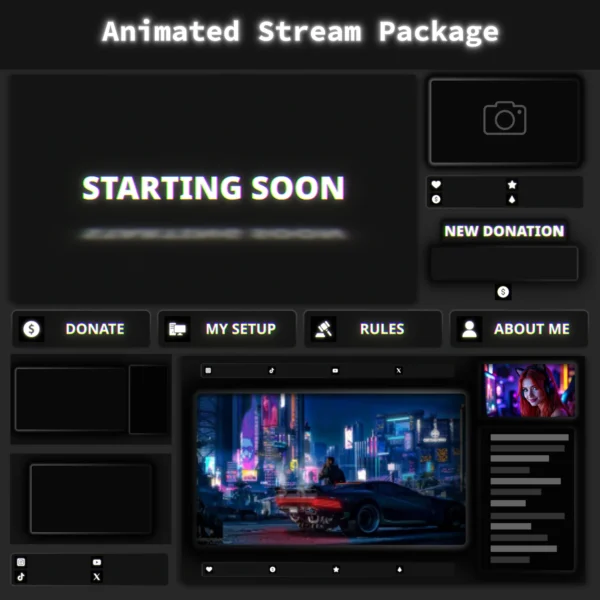
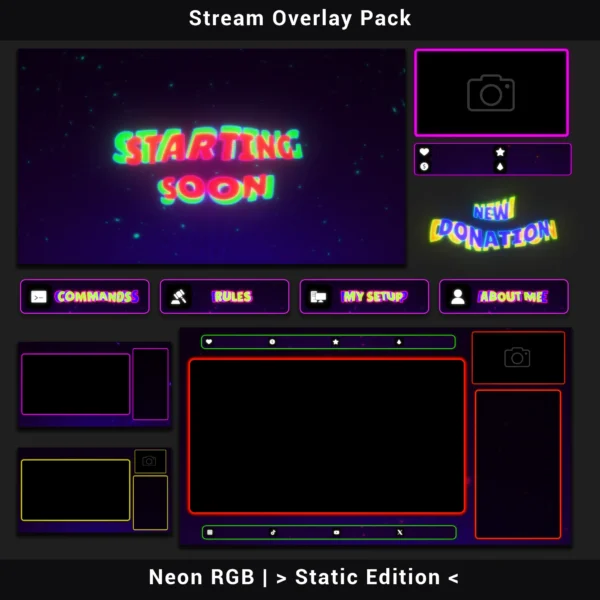
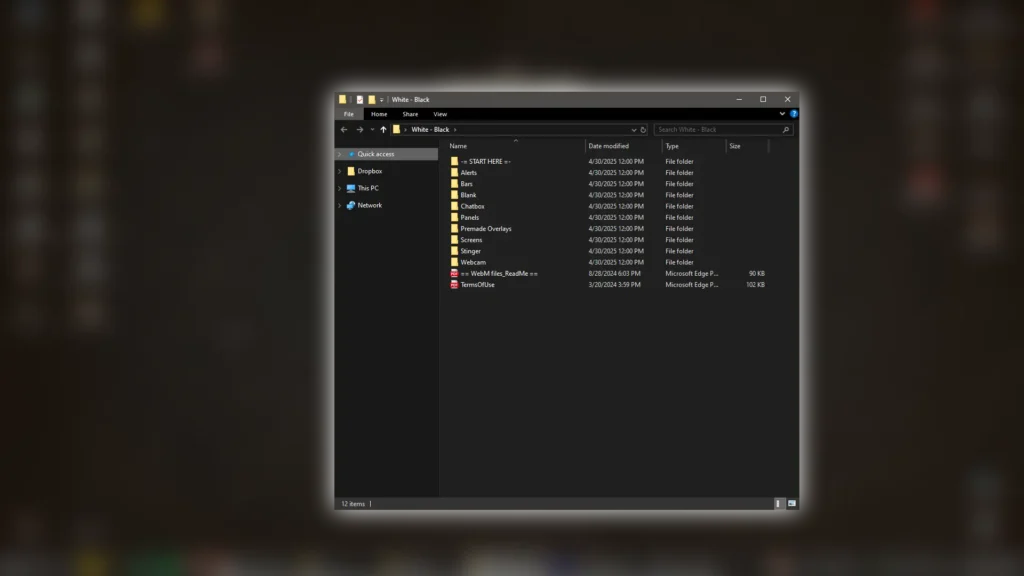
If you purchased an overlay from our store, you’re already ahead. After downloading the files, your ready-to-import .json files are located here:
Overlay_folder > START HERE > OBS_Studio
Let’s get your scene collection imported, linked, and live.
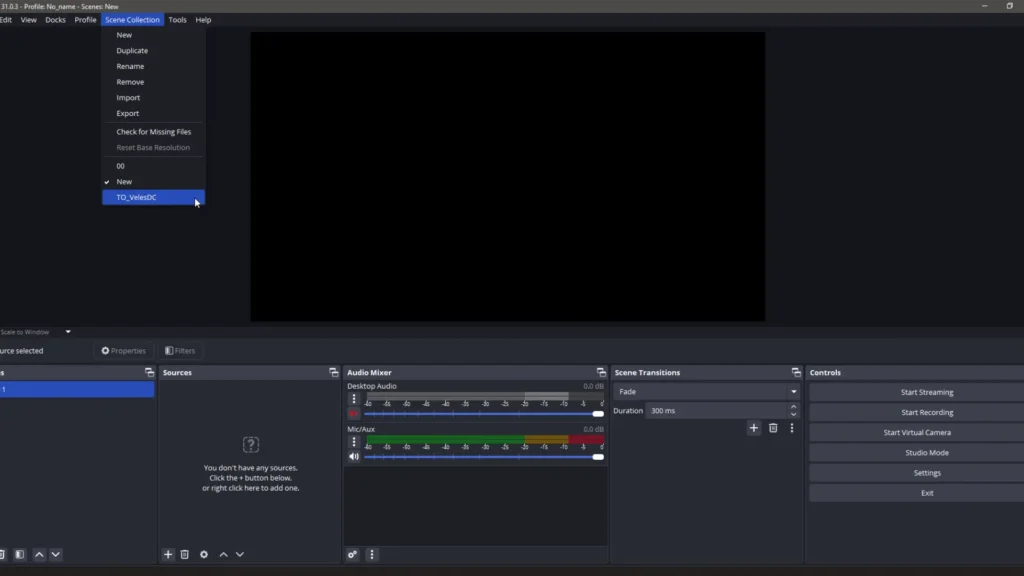
How to Import a Scene Collection into OBS Studio


Seeing a Missing Files Warning?
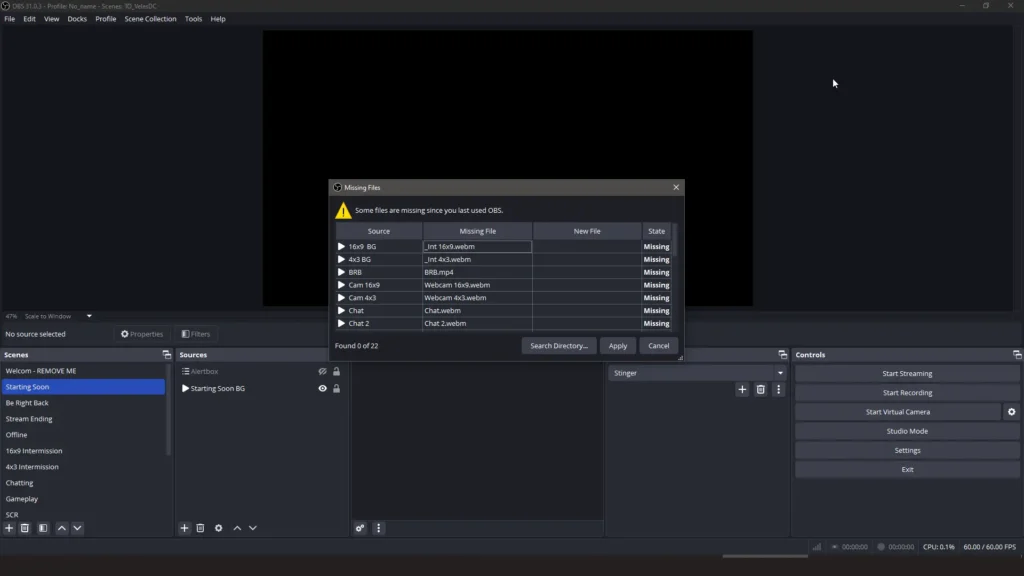
After importing, OBS might show this message:
“Some files are missing since you last used OBS.”
That means OBS can’t locate certain media files used in the scenes. It happens when the file paths have changed or the assets weren’t transferred with the .json file.
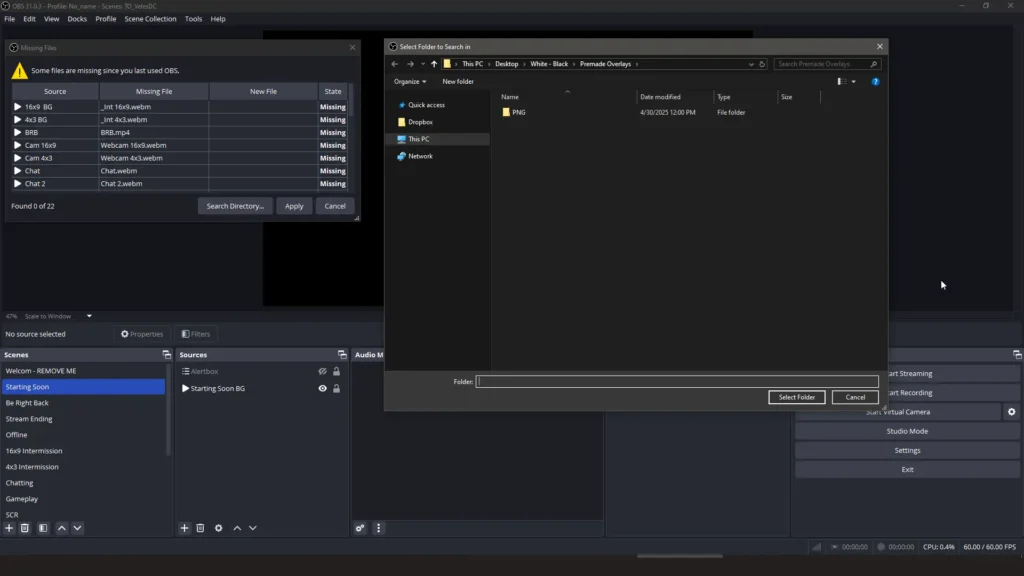
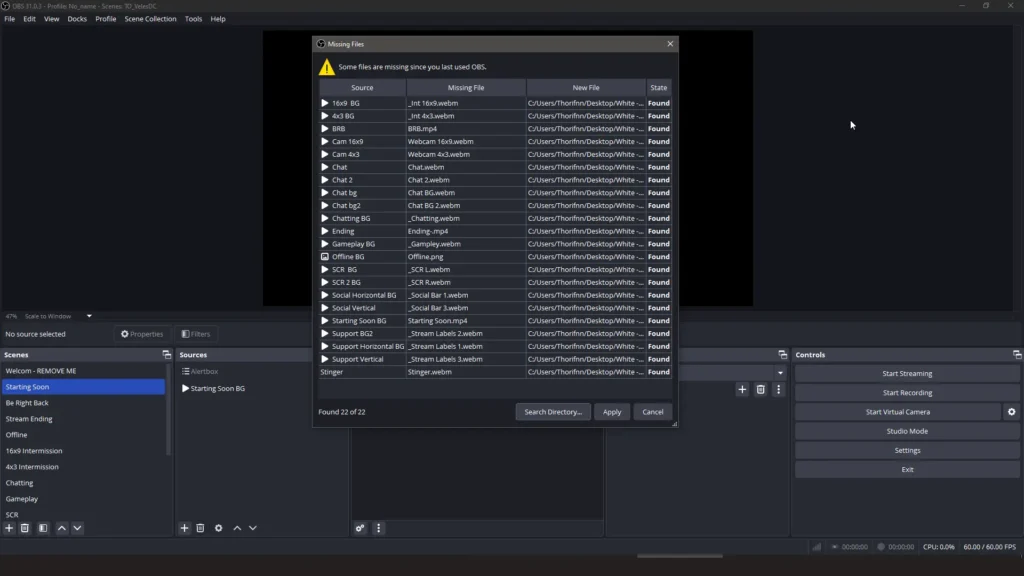
How to Fix Missing Files in OBS

You’re Ready to Stream
Importing a scene collection in OBS Studio 2025 isn’t just a technical step — it’s the moment your stream goes from basic to broadcast-ready.
Whether you’re using a custom layout or one of our professionally designed overlays, now you know exactly how to bring it to life in OBS.
Your scenes are loaded, your assets are linked, and your stream is one click away. So go ahead. Hit that Start Streaming button — and make it look effortless.
Watch the Full Video Tutorial
If you prefer to follow along visually, check out the full step-by-step video tutorial embedded above. In this video, you’ll see exactly how to import a scene collection into OBS Studio, fix any missing files, and get your stream ready in minutes. Whether you’re more comfortable with video guides or written instructions, this tutorial covers everything you need.